Authorized Dealer
Dragonframe 2026 is a digital image capture software enabling you to make professional stop motion animation productions. The included wireless Bluetooth Controller features a USB port and comes with a USB cable, if you…
Product highlights and buying context
Dragonframe 2026 is a digital image capture software enabling you to make professional stop motion animation productions. The included wireless Bluetooth Controller features a USB port and comes with a USB cable, if you prefer a wired connection. This Dragonframe license allows you to download the software from the Dragonframe website. The application is compatible with Mac, Windows, and Linux systems. The license includes three years of software updates.
Load multiple reference stills or videos and view them with your animation. Blend them with opacity, pull a chromakey (blue screen), and even assign a garbage matte to see just the part you want. Pop out reference videos into a synchronized player if you want it off to the side.
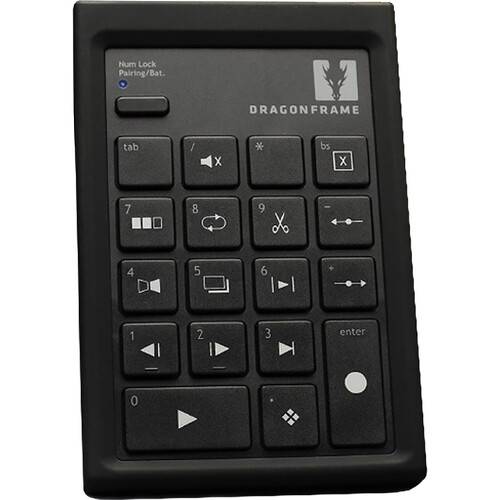
With the Dragonframe keypad, you can stay focused on animating instead of hunting around with the mouse. And the hotkeys are fully configurable, so if you really like a feature that is not on the keypad, you can move it there.
Compose for multiple formats with confidence. Create custom aspect ratio masks. Combine masks with TV-safe guides. Add grid overlays for help with composition. Add a push-in mask to allow post-production push-in or panning.
Check images at full-resolution. Check for over or underexposed areas with the clipping view. Load images from other scenes to compare exposure and composition. Compare image contrast with the Digital Densitometer.
Create characters, scrub through your audio, and assign words and phonetics for all your dialogue. View this data while animating, in the X-Sheet, Timeline, or Audio HUD.
Define your lighting program with keyframes. Adjust the smoothness in each direction with a simplified "bezier" handle, giving you a large degree of control while maintaining an efficient programming interface.
It's easy to create custom lighting programs for different exposures. You can customize the exposure's lighting program directly, or create a new program for one or more exposures to share.
Once you've programmed a move, you'll want to test it out. Run a move test within the Arc workspace and see how it looks. The move test captures video assist frames only, in order to speed up the test process. On a long move, you can reshoot just the section you're working on. You'll have the move perfected in record time.
You can use a wide range of hardware, from the do-it-yourself Arduino-based DFMoco sketch to off-the-shelf kits from the eMotimo or Slidekamera. See compatible hardware in Dragonframe's FAQ for more information.
Step to Live
Step directly from captured frames to your live view.
Onion-Skin
Blend the live view over any frame in your animation.
Auto Toggle
Toggle between live view and captured frames with adjustable speed.
Toggle
One keypress toggles between live and captured frames, then back again when released.
Nav-Line
Quickly navigate your animation sequence, as well as select frames for playback.
High-Res Playback
Play back either your video assist frames or proxies of your full-resolution captures.
Short Play
Play back the last twelve frames (configurable).
Drawing Tools
Draw paths and lines on screen to assist with animation.
Difference Mode
Useful for re-lining up a shot if camera or set is bumped.
Lights Prominent / Darks Prominent
Useful when character is dark and background is light, or vice versa.
Rotoscope Layers
Import images, movie files, or Dragonframe scenes as a line-up layer for easy double-pass line-ups, chromakey, or onion-skin.
Chromakey / Greenscreen
Use basic chroma key (green screen) pull for lineup of effects shots.
Layer Position/Size/Orientation
Adjust rotoscope layer orientation, scale, and position.
Play/Loop Markers
Mark in and out points for playback and looping using the Nav-Line.
User-Assigned Hot Keys
Simple interface for re-mapping the default keyboard commands.
Punch-In for Animation
Use Canon, Nikon, Olympus, or Fujifilm live view magnification to punch in on a section of the video assist image.
Auxiliary Monitor
Send main view to second monitor (video village).
Interval
Set an interval in hours, minutes, seconds.
Start Time
Start time-lapse at a future date or time.
End Time
End time-lapse at a future date or time.
Total Frames
End time-lapse after specified number of frames are captured.
High Precision
Capture within 0.1 second of the specified interval with most cameras.
Direct Access to Source Raw/JPG/TIFF Files
Your camera's high-res source files are saved in an easily accessible directory.
Export Movie
Create a QuickTime, AVI, or MP4 movie with many export options.
Export Image Sequence
Export your frames in different image formats, customize naming, etc.
After Effects
Import image sequence directly from scene source location.
macOS 10.13+ (M1 or Intel)
Windows 7/8.1/10 (64-Bit Only)
OpenGL 2.1 Capable Graphics Card
OpenGL 2.1 Capable Graphics Card
Canon EOS
1D Mark III, 1Ds Mark III, 1D Mark IV, 1D X, 1D X Mark II, 1D C, 5D Mark II, 5D Mark III, 5D Mark IV, 5Ds, 5Ds R, RP, R5, R6, 6D, 7D, 7D Mark II, 40D, 50D, 60D, 60Da, 70D, 77D, 80D, 100D, 450D, 500D, 550D, 600D, 650D, 700D, 750D, 760D, 800D, 1000D, 1100D, 1200D, 1300D, Digital Rebel SL1, Digital Rebel XSi, Digital Rebel T1i, Digital Rebel T2i, Digital Rebel T3i, Digital Rebel T4i, Digital Rebel T5i, Digital Rebel T6i, Digital Rebel T6s, Digital Rebel T7i, Digital Rebel XS, Digital Rebel T3, Digital Rebel T5, Digital Rebel T6, Kiss X7, Kiss X2, Kiss X3, Kiss X4, Kiss X5, Kiss X6i, Kiss X7i, Kiss X8i, 8000D, Kiss X9i, Kiss F, Kiss X50, Kiss X70, Kiss X80
Canon EOS cameras are the most widely used cameras for stop motion. They have a large live view and support for many camera settings. The Canon EOS M cameras are not supported because Canon does not provide tethered shooting support for them.
Nikon
D3, D3S, D3X, D4, D4S, D5, D90, D300, D300S, D500, D600, D610, D700, D750, D800, D800e, D810, D3200, D3300, D3400, D5000, D5100, D5200, D5300, D5500, D5600, D7000, D7100, D7200, Df, D2X (No Live View), D40 (No Live View), D40X (No Live View), D50 (No Live View), D60 (No Live View), D70 (No Live View), D70s (No Live View), D80 (No Live View), D100 (No Live View), D200 (No Live View)
Nikon cameras do not have live view exposure simulation. This means that the live view brightness will not match the brightness of your high-resolution still image. Make sure to capture test shots and adjust exposure levels before animating. The Nikon D3000 and Nikon D3100 cameras are not supported because Nikon does not provide tethered shooting support for them.
Sony Alpha
Olympus
Olympus cameras are the best MFT option for Dragonframe. They have a large live view and support for many camera settings.
Fujifilm
Panasonic
These cameras require two connections to the computer (USB and HDMI) and extra hardware (Blackmagic Design capture device) to get both live view and capture control. They are not recommended.
Blackmagic Design
Additional Details
Loading…
